

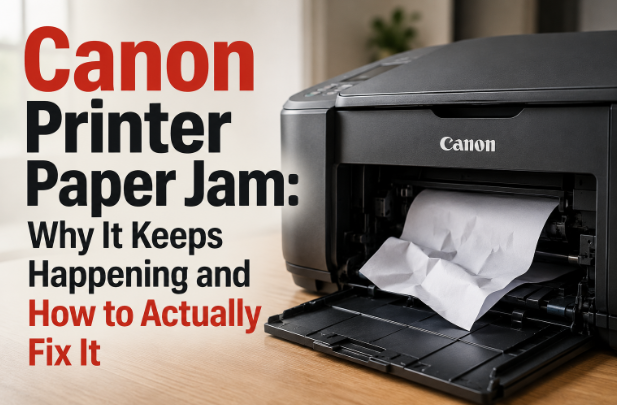
Canon printers are well regarded for their reliability, but paper jams are something every Canon owner eventually encounters. Canon printer paper jam issues can range from a simple sheet caught near the output tray to a piece of torn paper lodged deep inside the feed mechanism. Understanding the cause is what separates a permanent fix from a problem that returns the next day. This guide gives you everything you need to clear the jam and keep it from coming back.
Why Canon Printers Experience Paper Jams
Most canon printer paper jam situations trace back to paper quality, loading habits, or dirty rollers. Canon’s paper feed mechanism is precise, which means it is sensitive to paper that is slightly wrinkled, damp, or outside the recommended weight range. Using off-brand or low-quality paper is one of the most underappreciated causes of jams in Canon devices. Paper with rough edges from improper cutting can also catch on internal guides during the feed process. Switching to quality paper that matches your model’s specifications often reduces jam frequency dramatically.
How to Safely Remove Jammed Paper
Never pull jammed paper forcefully or at an angle. Canon printer paper stuck situations get considerably worse when the paper tears during removal. Turn the printer off completely and unplug it before touching the jammed sheet. Open both the rear access panel and the front cover to get the most complete view of the paper’s position inside the machine. Grip the paper with both hands as close to the jam as possible and pull slowly in the direction the paper normally exits. Even pressure prevents tearing.
Check for Torn Fragments After Every Jam
One of the most important and most skipped steps after clearing canon jammed paper is inspecting for fragments. Use a flashlight to illuminate the entire paper path. Run your fingers along the rollers and guides to feel for small pieces that are not visible from the access openings. Use tweezers to retrieve any fragments you find. A scrap the size of a postage stamp caught on a roller will cause the very next sheet to jam in exactly the same location, making it appear as though the original jam was never fully cleared.
Clean the Rollers to Prevent Repeat Jams
Rollers coated in paper dust and ink residue lose their gripping ability over time. A roller that cannot consistently grip a sheet of paper causes misfeeds that become jams. Use a lint-free cloth lightly dampened with water to clean any rollers accessible through the rear or front panels. Canon’s printer maintenance utility also includes a roller cleaning function on many current models. Running this periodically extends roller life and maintains consistent paper feeding even as the printer ages.
Load Paper Correctly Every Single Time
Overloading the paper tray or not fanning the paper stack before loading are two very preventable causes of Canon printer paper jam events. Always load paper within the capacity markings shown on the tray. Fan the stack before placing it in the tray to separate any sheets that may have stuck together in storage. Set the paper guides snugly against the edges of the stack without pressing so tightly that the paper cannot move freely. These habits take seconds and prevent the majority of feeding problems.
When the Problem Points to Mechanical Wear
If jams continue despite correct paper loading, clean rollers, and no fragments in the paper path, the issue may be mechanical. Worn pickup rollers, a damaged feed guide, or a sensor that is failing to trigger correctly can all cause persistent jams that self-service cannot resolve. Professional service is the right next step when mechanical wear is suspected.
Conclusion
Canon printer paper jam issues are manageable with the right approach. Removing paper carefully, checking thoroughly for fragments, cleaning the rollers, and loading paper correctly are the four pillars of jam prevention. For printers that continue to jam despite all these measures, a mechanical inspection is warranted. Canon’s support resources and authorized service centers like PritnerITHelp can assess whether the rollers need replacement or whether a deeper hardware issue is contributing to Canon printer paper stuck and Canon jammed paper problems. Addressing the cause now prevents compounding damage that makes future repairs more expensive.